Search This Blog

Showing posts with label jQuery DatePicker. Show all posts

Tuesday, 18 June 2013

Remove Weekends From jQuery UI Datepicker

In this post, find jQuery code to remove weekends rather than disabling them from jQuery UI Datepicker. This is quite useful when you don't want to allow users to select weekends.
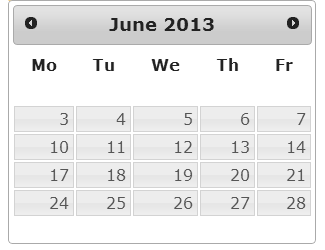

To disable weekends, all you need to do is to override ".ui-datepicker-week-end" css class and set display to none.
.ui-datepicker-week-end {
display:none
}
Related Post:

There is a small problem which you may face when you override this css class. Which is that it applies to all the datepickers present on the page. If you want the same behavior for all the datepickers then you don't have to worry but when this behavior is required only for specific datepicker, then above solution will not work.

To remove weekends for specific datepicker, you need to hide the ".ui-datepicker-week-end" on focus and blur event.
$('#txtNoWeekend').datepicker();

$("#txtNoWeekend").focus(function () {
$(".ui-datepicker-week-end").hide();
});

$("#txtNoWeekend").blur(function () {
$(".ui-datepicker-week-end").hide();
});
Feel free to contact me for any help related to jQuery, I will gladly help you.

Wednesday, 15 May 2013

Highlight first day of every month in jQuery UI Datepicker

With continuation of jQuery UI Datepicker series articles, here is another post which gives solution to highlight very first day of each month in jQuery UI Datepicker control.

First, define a CSS class to show highlighted effect.
.firstDay a{
background-color : #00FF00 !important;
background-image :none !important;
color: #000 !important;
}
And use "beforeShowDay" event provided with jQuery UI Datepicker control which gets called before building the control. This event can be used to assign specific class to specific dates.
$(document).ready(function () {
$("#txtDate").datepicker({
beforeShowDay: function (date) {
return [true, date.getDate() == 1 ? "firstDay" : ""];
}
});
});
See Complete Code
Feel free to contact me for any help related to jQuery, I will gladly help you.

Sunday, 28 April 2013

Show only Month and Year in only one jQuery UI DatePicker in case of Multiple DatePicker

In one of my previous post, I had posted about Show only Month and Year in jQuery UI DatePicker, but there was an issue with the code explained in that particular post. The issue was that it was applicable for all the datepickers present on the page and it is quite possible to have such behavior for one datepicker and rest of the datepickers control should work their default functionality.


Related Post:

How to do it?


To implement this, follow below steps only for that control for which you want to show Month and Year appear as Dropdown.
  • Set changeMonth and changeYear to true.

  • Set date format to "MM yy".

  • jQuery DatePicker has "onClose" event, which is called when Datepicker gets closed. So using this event, fetch the selected Month and Year and setDate of Datepicker.

  • jQuery DatePicker also has "beforeShow" event, which is called before the datepicker is displayed. So this event will be used to Show the previously selected Month and Year as selected. If you don't use this event, then datepicker will always show the current month and current year, irrespective of your previous selection.

  • Now, here is tricky part. Use focus() and blur() event of the textbox control to hide default behavior of the datepicker. And in focus() event, set the position of "ui-datepicker-div" which is created by datepicker control itself and this holds UI for having month and year dropdown.

$(document).ready(function () {
$('#txtDate').datepicker({
changeMonth: true,
changeYear: true,
dateFormat: 'MM yy',

onClose: function () {
var iMonth = $("#ui-datepicker-div .ui-datepicker-month :selected").val();

var iYear = $("#ui-datepicker-div .ui-datepicker-year :selected").val();

$(this).datepicker('setDate', new Date(iYear, iMonth, 1));
$(this).datepicker('refresh');
},

beforeShow: function () {
if ((selDate = $(this).val()).length > 0)
{
iYear = selDate.substring(selDate.length - 4, selDate.length);

iMonth = jQuery.inArray(selDate.substring(0, selDate.length - 5), $(this).datepicker('option', 'monthNames'));

$(this).datepicker('option', 'defaultDate', new Date(iYear, iMonth, 1));
$(this).datepicker('setDate', new Date(iYear, iMonth, 1));
}
}
});

$("#txtDate").focus(function () {
$(".ui-datepicker-calendar").hide();
$("#ui-datepicker-div").position({
my: "center top",
at: "center bottom",
of: $(this)
});
});

$("#txtDate").blur(function () {
$(".ui-datepicker-calendar").hide();
});
});
See result below
See Complete Code
Feel free to contact me for any help related to jQuery, I will gladly help you.